


WRITTEN BY kyle stockbridge
office administrator OF BOOM BOX POST
I recently handled a mix assembly for the first time and although on paper it’s a very straightforward process, it’s extremely detailed and can be quite time consuming. For those newer to audio post or unfamiliar with what I mean by mix assembly, check out “step four” in this post! Combining all the ingredients into the master session means importing the track data from each edit session and very carefully dragging all audio clips onto the correct tracks. It can be anxiety-inducing, double and triple checking your work to ensure you don’t miss a single thing. I consulted our Studio Engineer, Tim Vindigni for tips and he had just discovered that Pro Tools sneakily updated a feature in the Import Session Data window that’s extremely useful for the assembly process: Match Tracks! Let’s take a look at how it works.
What is the Match Tracks feature? When importing session data (shortcut Opt + Shift +I), instead of simply adding tracks from an existing session to your current session, Match Tracks will smartly analyze the commonalities between the track data of each session and help map or route the data to your new session’s tracks. This feature has been around for years but until 2024 it had almost no control and wasn’t very reliable. In the Pro Tools 2024.6 update however, Avid overhauled the Import Session Data window. With this came more functionality, visual feedback and backend updates to the “Match Tracks” feature.

Match Track Functions
“Match All” - Attempts to auto-match source tracks to new track destinations. SHORTCUT: Cmd + M
If “Exact Match” checkbox is checked, only tracks with identical names will be matched.
“Clear All” - Deselects all tracks in the list from being added or matched.
“Add All” - The traditional way of importing all source tracks to the session instead of matching them to track destinations. SHORTCUT: Cmd + A toggles between “Add All” and “Clear All”
“Unlink” - Lets you manually fix how you’d prefer to match or add the tracks in the list. For example: If you’ve selected “match all” but some of your source tracks are currently mapped to the wrong destination or no destination at all, enter “unlinked” mode and you can make new track selections to remap/add while leaving the correctly matched tracks untouched. SHORTCUT: Cmd + U
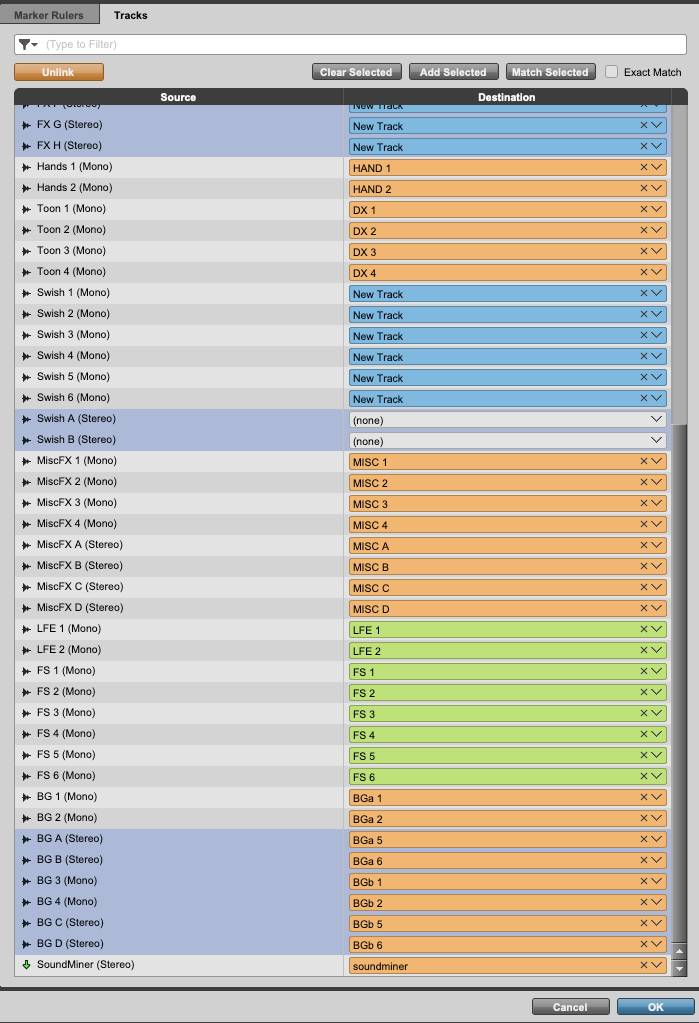
Added Visual Feedback for Quick QC
Green: Exact Match
Track names, track type and width match. Can confidently rest assured these tracks are mapped to the correct destination.
Orange: Partial Match
Pro Tools has found a likely match but it’s not an exact name match. Double check these before importing! (See above how it tried matching Toon tracks to DX tracks)
Blue: Add Tracks
Add/Import tracks without mapping to new track destination
Consistency is Key
So how do we set this up for smooth assemblies? It really all starts with consistency across your different templates! At Boom Box, we meticulously design our edit templates to accommodate all editorial needs for the project while striving to maintain consistency with the final mix template.
Naming Consistency: When designing your edit and mix templates, keep track names as similar as possible across the board to ensure a perfect match. But don’t worry: even if the track names have minor differences in spacing, uppercase/lowercase letters, additional letters or words, I’ve found that Pro Tools does a pretty good job auto matching. For example, it correctly matched “MiscFX1” to “MISC 1.”
Track Count and Layout Consistency: Maintaining track layout consistency is important for best results. For example, if your edit template contains 24 mono FX tracks, 8 stereo FX tracks… Design your mix template so that it can accommodate the number of tracks in the edit template, paying attention to track widths.
Surely certain projects/episodes will force editors to deviate from the edit template and create more tracks for their edit. That’s okay! When it comes time to import, you’ll map these to a “New Track” instead of matching.
The most important thing for you or collaborating editors to avoid is renaming or deleting individual tracks here and there within the edit session as this will confuse the auto-match.
Track Format Matters
Tracks with identical names but different track width (stereo vs mono etc) are not eligible for matching.
Aux Tracks are unable to be matched to Audio Tracks and vice versa.
Routing Folders CAN be matched to Aux Tracks and vice versa as long as they have the same track width settings.
A word of caution!
So you have all your tracks perfectly matched? Wait! Before importing, make sure you have selected the appropriate Track Data to import onto these tracks. Otherwise you could be wiping out important mix template settings such as track inserts, sends, output routings etc. If you only need the audio media and simple automation, these settings may be a good starting point. SHORTCUT: Ctrl + Click any of the check boxes for a clean slate and then select only what you need.
You don’t have to do this every time! You can save these selections as presets to recall next time.
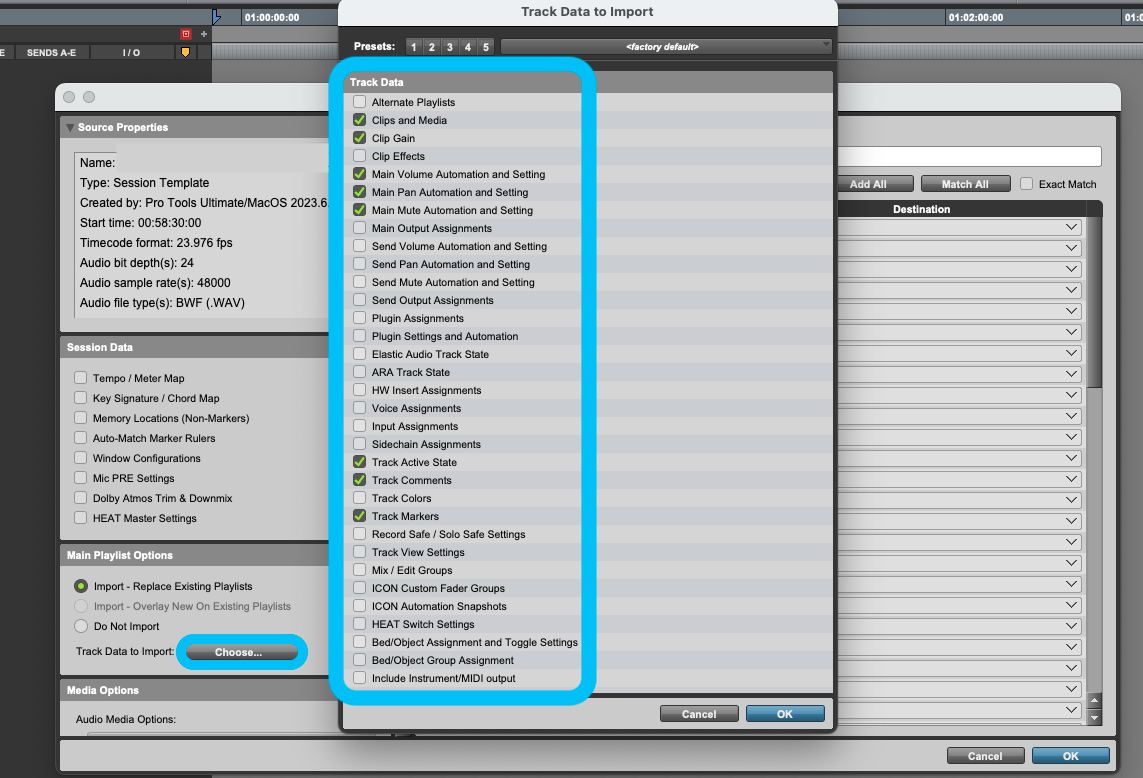
Whether you’re a one-man-band handling all editorial and mixing or if you’re an assistant editor or even supervisor, I hope this post helps inform how you set up your templates to save time down to the road with this useful function! Thank you for reading.
If you enjoyed this post, check these out:
Level Up Your Template with Window Configurations
Game Changer? Testing Pro Tools’ New Speech-to-Text Feature
Step-By-Step Audio Post-Production Workflow